Manual · Chapter 2
The canvas
The canvas is a big table. Here's how to look around it without getting lost.
Reading the board
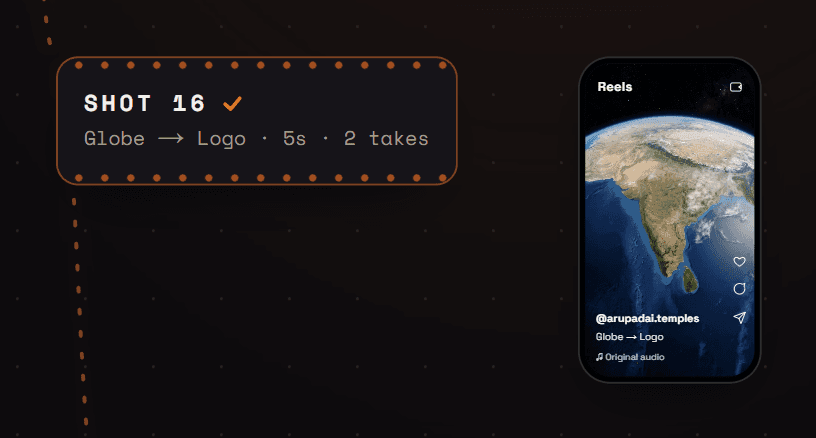
The board reads left to right and top to bottom. Small chips are steps you've already answered; the large card is the step Nila is on now. Once shots begin, each shot gets its own row: a chip for each decision, then a phone-shaped preview of the take.
Moving around
The navigation cluster sits at the bottom, just left of Nila. Everything you need to move is there, and every button shows its shortcut when you hover.

- Pan — hold the right mouse button and drag, or hold Space and drag. The Hand button lights up while you do it. On a trackpad, click the Hand (or press H) and a plain drag pans; click the arrow (or press V) to go back.
- Zoom — scroll the wheel, or use − and +. Click the percentage to snap back to 100%. The fit button (or ⌘0 / Ctrl+0) shows the whole board.
- Home — the crosshair takes you straight back to the card Nila is on. It glows amber whenever that card is off-screen, so if you ever feel lost, press it (or the Home key).
Rewinding a step
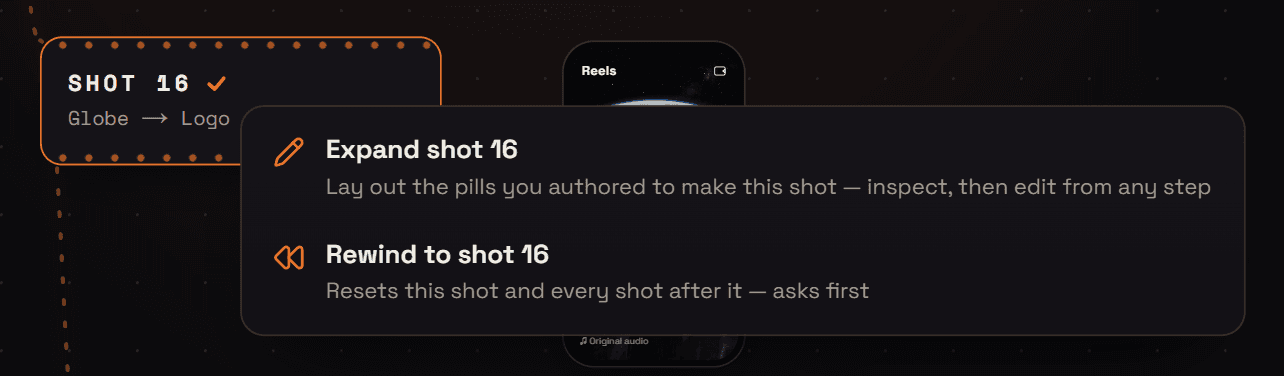
Right-click any chip to reopen that step. Edit this step changes just that answer; Edit from this step rewinds the board to it. A rewind discards every step after that point — including generated assets, permanently — so Nila asks you to confirm first. Right-click the current card to step back one.
Nila's dock, the Moon and the rail
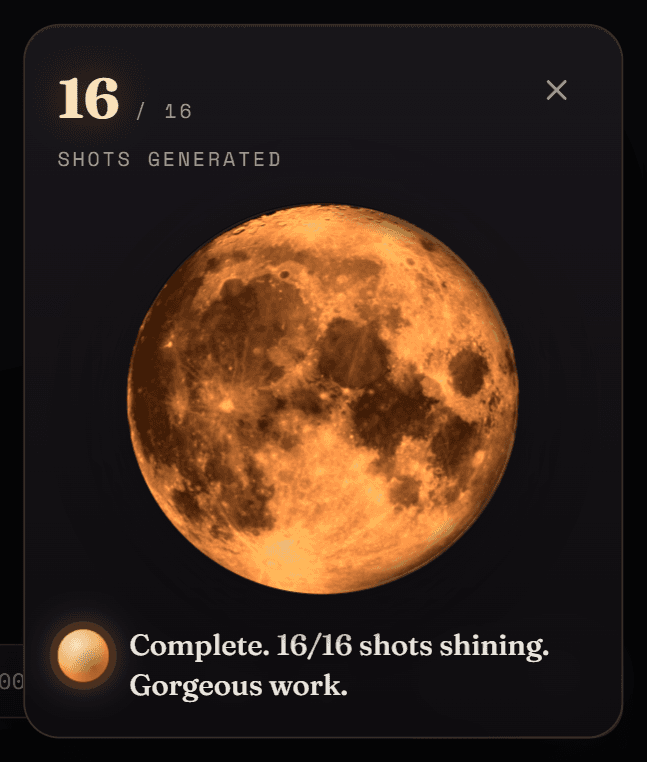
Nila's dock is bottom-right. Her orb is a moon that fills as shots light up; click it to open the Moon panel with your progress and the shots generated so far. The notebook button beside her opens Nila's Notebook. The rail at the top shows the stage you're in, and the toasts near the dock tell you when a shot lights.